



Special Promotions user guide
- Installing the Magento 2 Special Promotions extension
- Set up cron
- Uninstalling the Magento 2 Special Promotions extension
- Extension Compatibility
- Introducing the Magento 2 Special Promotions extension
- Using Magento 2 Special Promotions
- Managing Promo Rules
- Frequently Asked Questions
- Common Problems and Solutions
- Working with Different Product Types
- Fractional Quantities
- Best Practices
Installing the Magento 2 Special Promotions extension
Command Line Installation
- Backup your web directory and store database
- Download the Magento 2 Special Promotions installation package
- Upload contents of the Magento 2 Special Promotions installation package to your store root directory
- In SSH console of your server navigate to your store root folder:
cd path_to_the_store_root_folder |
run the following command: :
php bin/magento module:enable Aheadworks_SpecialPromotions |
then:
php bin/magento setup:upgrade |
after:
php bin/magento setup:static-content:deploy -f |
5. Flush store cache; log out from the backend and log in again
|
Make sure the installation is done from the FTP administrator account. Otherwise, set 775 permissions to the store root directory after the extension is deployed. |
Composer Installation
If you are installing an extension from Aheadworks for the first time, you need to add our composer repository to your Magento store:
1. Login to your ssh console and navigate to your store folder:
cd path_to_the_store_root_folder |
Run the following command:
composer config repositories.aheadworks composer https://dist.aheadworks.com/ |
After the command was executed successfully, you can use the composer to install the extension.
To install the extension:
2. Login to your ssh console and navigate to your store folder:
cd path_to_the_store_root_folder |
3. Run the following command to install the latest version of the extension:
composer require aheadworks/module-special-promotions |
if you need to install a specific version, run this command:
composer require aheadworks/module-special-promotions:<version> |
|
Specify the version of the extension in <version> |
When prompted, enter Public Key (Username) and Private Key (Password):

Both Public Key (Username) and Private Key (Password) can be found in My Projects and Licenses in your personal account on our site:

To upgrade the extension:
To update or upgrade an extension:
Download the updated extension file. Take note of the module-name and version. Export the contents to your Magento root.
If a composer package exists for the extension, run one of the following.
Update per module name:
composer update aheadworks/module-special-promotions |
Updater per version:
composer require aheadworks/module-special-promotions:<version> |
Run the following commands to upgrade, deploy, and clean the cache.
php bin/magento setup:upgrade --keep-generated |
Set up cron
If you have already configured cron jobs for your Magento installation then you can skip this step. Read the following instructions on setting cron job for your Magento store: Magento user guide.
Generally, it would be enough to run in SSH console of your server:
crontab -e |
And insert the following line:
*/3 * * * * php -c <ini-file-path> <your Magento install dir>/bin/magento cron:run |
Remember to confirm the Save request when exiting the installation.
Uninstalling the Magento 2 Special Promotions extension
Since Magento introduced declarative Database you need to be very carefull when uninstalling or disabling the module.
|
NOTE: Please be very careful when uninstalling/disabling this module. This module uses a declarative DB scheme. Once the module is uninstalled the DB tables will be lost. |
Manual Removal
1. Disable the module by executing the following commands:
php bin/magento module:disable Aheadworks_SpecialPromotions |
2. Remove the extension files from the following folder:
app/code/Aheadworks/SpecialPromotions |
Automatic Removal (via Composer)
1. Disable the module by executing the following commands:
php bin/magento module:uninstall Aheadworks_SpecialPromotions |
Extension Compatibility
| Module Version | Magento Version |
| As of version 1.0.0 | 2.4.7 - 2.4.8 |
The PHP version depends on your current Magento version. Please, refer to your Magento version release notes.
Introducing the Magento 2 Special Promotions
Extension Overview
The Special Promotions extension lets you create flexible discount rules to increase sales, raise average order value, and attract customers.
Key Promotion Types
-
Discounts on specific products or categories
-
Discounts on the whole order
-
Buy X Get Y (BOGO) offers
-
Spend X Get Y offers
-
Free shipping rules
Each promotion rule can be limited by products, categories, customer groups, dates, quantities, or order amounts. This gives you full control over your promotions while protecting margins and managing costs effectively.
Using Magento 2 Special Promotions
Promotional Rules Brief Overview
The Special Promotions extension allows you to create 5 types of promotional campaigns to boost sales:
1. Amount Off Products or Categories
How Does the Rule Work:
-
Select products for discount: choose specific products, categories, or use conditions.
-
Set criteria (optional): set additional requirements (minimum purchase amount, minimum quantity of items, etc.)
-
Apply discount: The discount is applied to all matching products
How Does the Rule Work:
-
Check criteria: The system checks if conditions for the discount are met (minimum purchase amount, minimum quantity of items)
-
Apply discount: If criteria are met, the discount is applied to the entire order subtotal (not to specific products)
Important: This scenario does not check which specific products are in the cart. As long as the criteria are met, the discount applies to the entire order subtotal.
How Does the Rule Work:
The scenario works in two stages:
-
Condition X ("If customer buys X"): Define the required quantity of items from the specified group that the customer must purchase.
-
Action Y ("Then customer gets Y"): Once Condition X is fulfilled, a defined quantity of items from another group receives a discount.
Important: Items used to fulfill Condition X will not receive a discount, even if they also match the criteria for Action Y.
How Does the Rule Work:
The scenario works in two stages:
- Condition X ("If customer spends X"): Define the purchase amount the customer must reach on items from the specified group.
- Action Y ("Then customer gets Y"): After reaching the amount, selected items from another group receives a discount
Important: Items (or portions of their value) used to reach Condition X are excluded from the discount, even if they also match the criteria for Action Y.
How Does the Rule Work:
-
Check criteria: The system checks if conditions for free shipping are met (minimum purchase amount, minimum quantity of items)
Important: For Free Shipping, the minimum purchase amount is calculated after discounts are applied (subtotal_with_discount), unlike other scenarios.
-
Check compatibility: verifies whether free shipping can be combined with other discounts
-
Apply free shipping: If all conditions are met, shipping cost is set to $0 for selected shipping methods
Extension Configuration
To enable the extension, go to Stores > Configuration > AHEADWORKS EXTENSIONS > Special Promotions
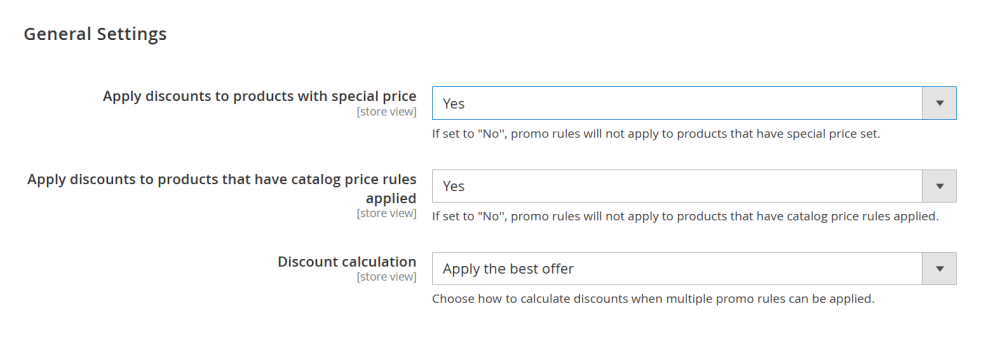
General Settings
In the General Settings section configure the following options:
-
Apply discounts to products with special price – whether promotional rules apply to products that already have a special price:
-
Yes - promotional rules apply to products with special price
-
No - promotional rules do not apply to products with special price
-
Discount calculation – define how multiple matching rules are handled:
-
Apply all discounts - all matching rules are applied (discounts are combined)
-
Apply the best offer - only the rule with the highest discount is applied
Promo Pages Settings
-
Parent 'All Sales' Category — Select the main catalog category that will act as the parent container holding all your promotional pages.
-
Promo Page Expiration — Define the default global action for what happens to a promotional page once its sale period ends.
-
Keep Page (None) — The promo page stays active and live on the storefront.
-
Permanent Redirect (301) — Permanently redirects the expired page URL to another destination. Best for non-recurring, one-time sales.
-
Temporary Redirect (302) — Temporarily redirects the page URL. Ideal for recurring seasonal sales, such as Black Friday or Annual Clearances.
-
Remove Page (404) — Instantly deletes the page, making it return a 404 Not Found error.
-
Redirect Destination — Enter the specific URL where customers should be redirected. If left blank, the extension will automatically redirect users to the category selected in the Parent 'All Sales' Category field. This field dynamically appears only if Permanent Redirect (301) or Temporary Redirect (302) is chosen.
-
Maximum promo banners on product page — Specify the maximum number of active Special Offers promotional banners that can be displayed simultaneously right under the "Add to Cart" button on individual product pages.

Creating Special Promotion Rule
The Special Promotions extension allows you to create 5 types of promotional campaigns to boost sales:
Each scenario has its own features and settings that allow you to flexibly configure promotional campaigns for various business needs.
To create and customize promotional rules, go to Marketing > Special Promotions by Aheadworks > Promo Rules, and click the Add New Rule button.
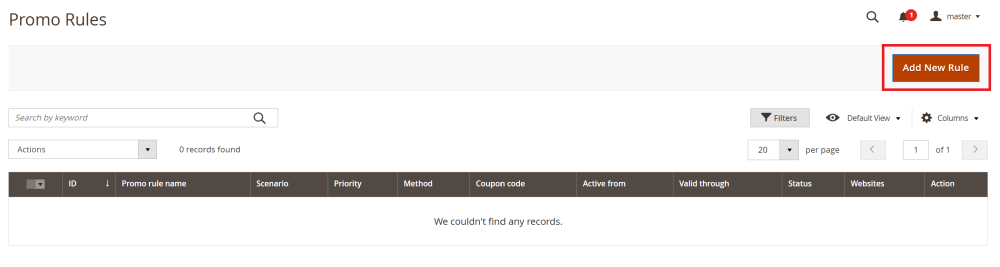
The Select promotion type popup will appear. To proceed select the desired promotion type in the popup window.

Amount Off Products Or Categories
Scenario Setting
The Amount Off Products or Categories scenario applies a discount directly to products that meet the specified conditions. It is the simplest and most flexible discount type.
After selecting the Amount Off Products or Categories block, you will be redirected to the New Rule page.
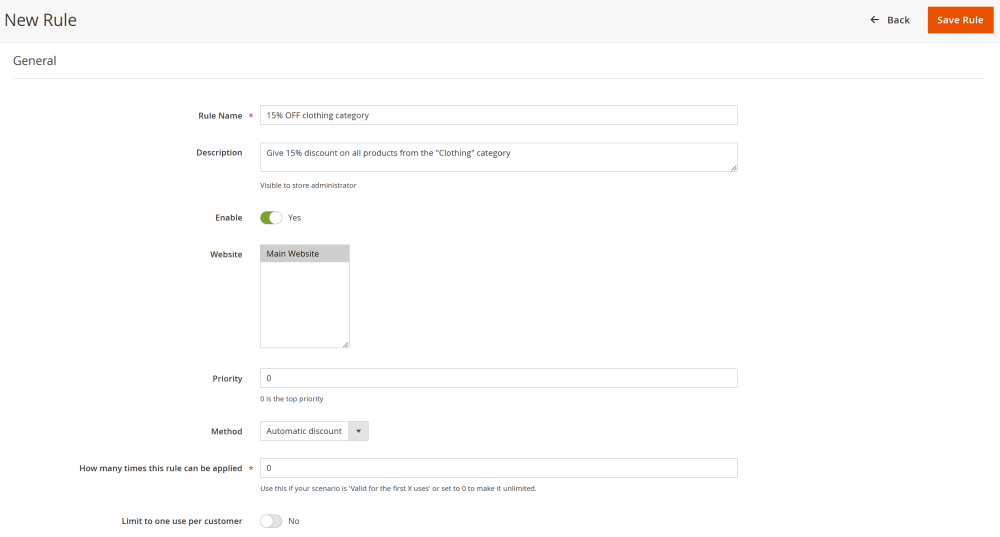
General section
In the General section, configure the following settings
-
Rule Name – enter any convenient name that will be displayed in the promo rules table;
-
Description – optionally describe the rule (e.g. rule conditions) to be displayed in the promo rules table;
-
Enable – enable or disable the promo rule;
-
Website – select the store view where the promo rule applies;
-
Priority – define the order in which rules are applied when the Apply all discounts option is selected in the General settings. Lower numbers have higher priority (e.g. a rule with Priority = 0 is applied before a rule with Priority = 10);
-
Method – select how the discount is applied:
-
When selected, an additional Coupon Code field appears where you can enter a custom code or generate a random one.
-
Automatic discount – the discount is applied automatically once the conditions are met;
-
Coupon code – the customer must enter a coupon code at checkout to receive the discount once the conditions are met.
- When selected, an additional Coupon Code field appears where you can enter a custom code or generate a random one.
-

-
How many times this rule can be applied – limit how many customers can use the promotion (e.g. enter 100 to allow only the first 100 customers to receive the discount. Enter 0 to make the rule available to all customers without limits).
-
Limit to one use per customer – set to Yes if each customer should be able to use the discount only once.
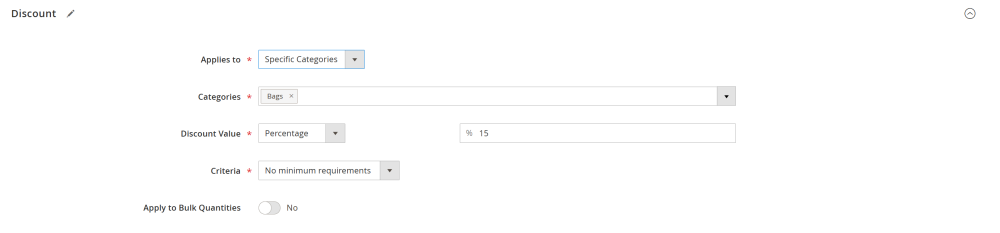
Discount section
In the Discount section, you define which products receive a discount and under what conditions.
-
Applies to – define which items/categories are eligible for the discount. Depending on your selection, additional fields will appear:
-
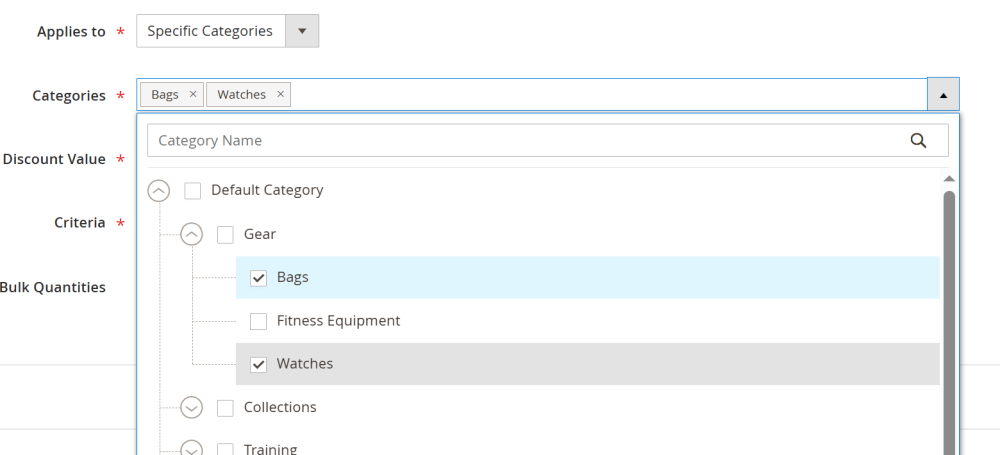
Specific categories – an additional Categories field appears. Select one or more categories and/or subcategories whose products will receive the discount.
-
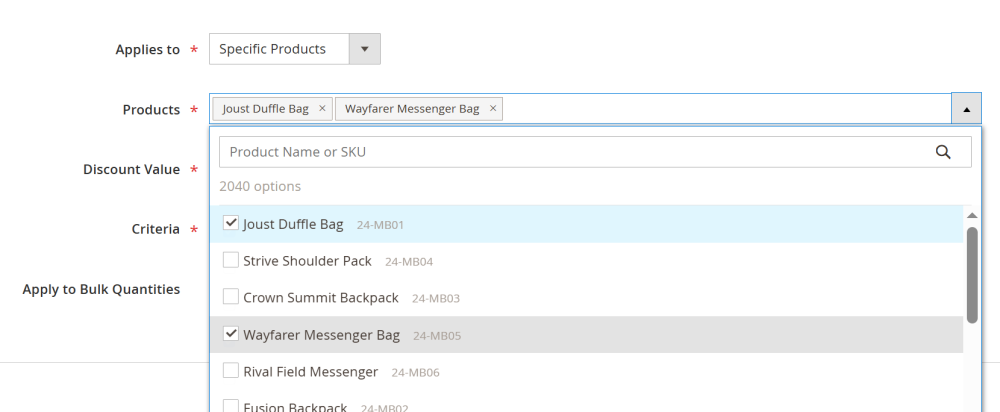
- Specific products – an additional Products field appears. Search by SKU or product name to select one or more products for the discount.
-
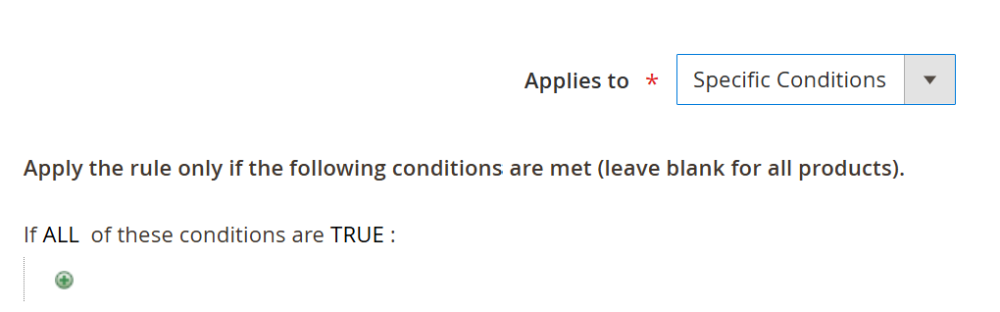
- Specific conditions – an additional condition builder appears. Use it to create advanced rules based on product attributes (e.g., color, price, or brand)
-
Discount Value – from the dropdown menu select the discount type and set its value:
-
Percentage discount (e.g., 10 = 10% off the product price);
-
Fixed amount discount (e.g., 5 = $5.00 off the product price);
-
Free;
-
Fixed price (e.g., 20 = the product will cost $20.00).
-
Criteria – define additional conditions that must be met before the discount is applied:
-
No minimum requirements - no additional conditions; the discount applies immediately
-
Minimum purchase amount – the customer must reach a minimum cart subtotal (e.g. 100 = $100)
| Note: For the Amount Off Products or Categories scenario, the cart subtotal is checked before discounts are applied. |
-
- Minimum quantity of items – the customer must have at least a specified number of items in the cart (e.g. 5 = 5 items in the cart). The option supports decimal values.
- Minimum quantity of items – the customer must have at least a specified number of items in the cart (e.g. 5 = 5 items in the cart). The option supports decimal values.
-
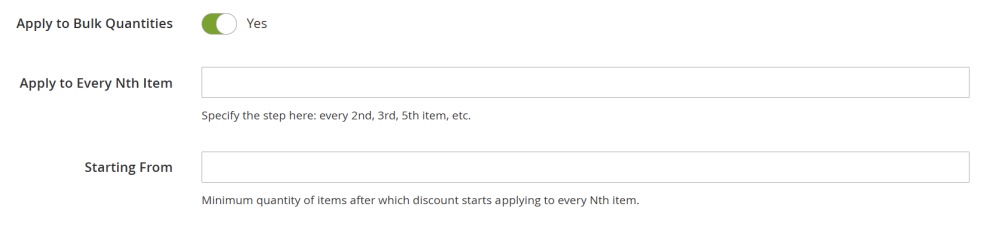
Apply to Bulk Quantities – set to Yes if the discount should apply only when purchasing items in certain quantities. When enabled, additional fields will appear:
-
Apply to Every Nth Item – define the step with which discount will be applied to the item (e.g “3” means the discount applies to the 3rd, 6th, 9th item, etc.)
-
Starting From - defines after how many items the discount starts applying to every Nth item (e.g “3” means, the discount applies starting after the 3rd item: 6th, 9th, 12th, etc. The 3rd item itself does not receive a discount, as "Starting From" means "starting after")
-
Visual & Labels section
In the Visuals & Labels section, you can customize the badge design and color scheme used to highlight promotional products on the storefront.
-
Label Text – enter the short promotional text or badge content that will be displayed directly on product images in catalog listings.
-
Label Shape – select the target visual style for the product image badge using the radio buttons. You can choose between Pill, Rectangle, or Rounded rectangle.
-
Background Color – choose the background color for the product image label and the promo page description area using the color picker.
-
Text Color – choose the font color for the label text and description copy using the color picker.

Category & Visibility Settings section
In the Category & Visibility Settings section, you can manage the structural placement of the promotion within your catalog and control its accessibility on the storefront.
-
Create Promo Category – toggle to Yes to automatically create a dynamic sub-category under your main "All Sales" category for this specific promotion.
-
Show on "All Sales" – toggle to Yes to include this promotion's landing page in the aggregate sales listing. If disabled, the page is hidden from the main list and is only accessible via a direct link.

Customers section
In the Customers section, you can define who is eligible to receive the discount.
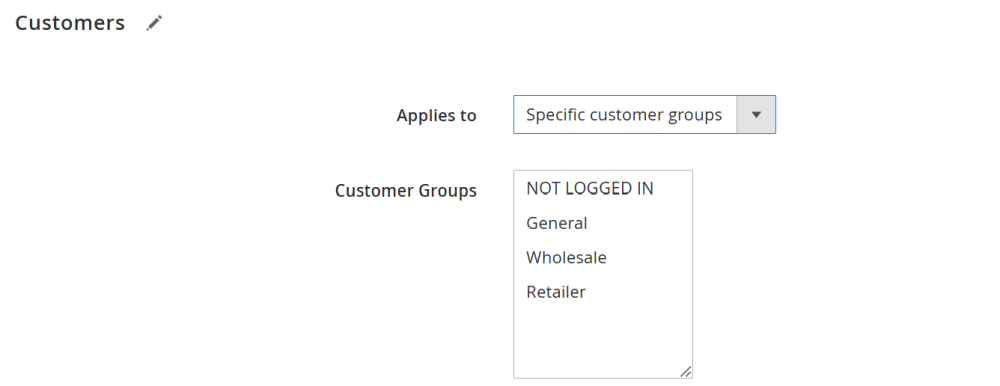
- Applies to – select the target audience from the dropdown list. Depending on your selection, additional fields will appear.

-
- Specific customer groups – select the specific customer group(s) that will be eligible for the discount.
-
- Specific customers – select the specific customer(s) that will be eligible for the discount. Enter customer email addresses in the Specific Customers field, separated by commas.

Active Dates
In the Active Dates section, you can make the promotion time-limited:

-
Start Date – the date when the promotion becomes active.
-
End Date – the date when the promotion expires.
If no dates are set, the promotion remains active until it is manually disabled.
Example “Amount off products or categories” Scenarios
Example 1: Simple Category Discount
Task: Give 15% discount on all products from the "Clothing" category
Settings:
- Discount Value Type: Percentage
- Discount Value: 15
- Applies To: Specific Categories → select "Clothing" category
- Criteria: No Minimum Requirements
Result: All products from the "Clothing" category will receive a 15% discount
Example 2: Discount with Minimum Amount
Task: Give $10 discount on products from the "Electronics" category if purchase amount $200 or more
Settings:
-
Discount Value Type: Fixed Amount
-
Discount Value: 10
-
Applies To: Specific Categories → select "Electronics" category
-
Criteria: Minimum Purchase Amount
-
Minimum Purchase Amount: 200
Result: If purchase amount $200 or more, all products from the "Electronics" category will receive a $10 discount
Example 3: Discount on Every 3rd Item
Task: Every 3rd item from the "Books" category with 50% discount
Settings:
-
Discount Value Type: Percentage
-
Discount Value: 50
-
Applies To: Specific Categories → select "Books" category
-
Apply to Bulk Quantities: Yes
-
Apply To Every Nth Item: 3
Result: Every 3rd item from the "Books" category will receive a 50% discount
Example 4: Fixed Price When Purchasing 5 or More Items
Task: When purchasing 5 or more items from the "Accessories" category, each item price = $10
Settings:
-
Discount Value Type: Fixed Price
-
Discount Value: 10
-
Applies To: Specific Categories → select "Accessories" category
-
Criteria: Minimum quantity of items
-
Minimum Items Qty: 5
Result: If there are 5 or more items from the "Accessories" category in the cart, each item will cost $10
Amount Off Whole Order
Scenario Setting
The Amount Off Whole Order scenario applies a discount to the entire order subtotal when certain criteria are met.
Unlike Amount Off Products, which applies discounts to specific products, this scenario applies a discount to the whole order regardless of which products are in the cart.
The discount is calculated from the order subtotal (before shipping, taxes, and other discounts). The subtotal is checked before applying discounts (subtotal), not after.
Once you click the Amount off whole order block, you will be taken to the New Rule page. At this page you need to configure the rule conditions.
General section
In the General section, configure the following settings
-
Rule Name – enter any convenient name that will be displayed in the promo rules table;
-
Description – optionally describe the rule (e.g. rule conditions) to be displayed in the promo rules table;
-
Enable – enable or disable the promo rule;
-
Website – select the store view where the promo rule applies;
-
Priority – define the order in which rules are applied when the Apply all discounts option is selected in the General settings. Lower numbers have higher priority (e.g. a rule with Priority = 0 is applied before a rule with Priority = 10)

-
Stop further rules processing – toggle to Yes to prevent lower-priority promotions from applying to the cart once this automatic rule is triggered.
-
Method – select how the discount is applied:
-
Automatic discount – the discount is applied automatically once the conditions are met;
-
Coupon code – the customer must enter a coupon code at checkout to receive the discount once the conditions are met.
When selected, an additional Coupon Code field appears where you can enter a custom code or generate a random one.

-
How many times this rule can be applied – limit how many customers can use the promotion (e.g. enter 100 to allow only the first 100 customers to receive the discount. Enter 0 to make the rule available to all customers without limits).
-
Limit to one use per customer – set to Yes if each customer should be able to use the discount only once.
-
Publish coupon – toggle to Yes to display this coupon code automatically on the cart page. This option appears only if a coupon code is required for the rule.
|
Note: On the storefront, the published coupons will be displayed on the cart page directly below the Apply Discount Code field. Customers can view all available offers and apply them to their order with a single click if their cart matches the promotion conditions. |


Discount section
At the Discount section you have to configure the promo rule conditions:
-
Discount Value – from the dropdown menu select the discount type and set its value:
-
Percentage discount (e.g., 10 = 10% off the product price);
-
Fixed amount discount (e.g., 5 = $5.00 off the product price);
-
Criteria – define additional conditions that must be met before the discount is applied:
-
No minimum requirements - no additional conditions; the discount applies immediately
-
Minimum purchase amount – the customer must reach a minimum cart subtotal (e.g. 100 = $100)
| Note: For the Amount Off Products or Categories scenario, the cart subtotal is checked before discounts are applied. |
-
- Minimum quantity of items – the customer must have at least a specified number of items in the cart (e.g. 5 = 5 items in the cart). The option supports decimal values.

Visual & Labels section
In the Visuals & Labels section, you can customize the badge design and color scheme used to highlight promotional products on the storefront.
-
Label Text – enter the short promotional text or badge content that will be displayed directly on product images in catalog listings.
-
Label Shape – select the target visual style for the product image badge using the radio buttons. You can choose between Pill, Rectangle, or Rounded rectangle.
-
Background Color – choose the background color for the product image label and the promo page description area using the color picker.
-
Text Color – choose the font color for the label text and description copy using the color picker.
Category & Visibility Settings section
In the Category & Visibility Settings section, you can manage the structural placement of the promotion within your catalog and control its accessibility on the storefront.
-
Create Promo Category – toggle to Yes to automatically create a dynamic sub-category under your main "All Sales" category for this specific promotion.
-
Show on "All Sales" – toggle to Yes to include this promotion's landing page in the aggregate sales listing. If disabled, the page is hidden from the main list and is only accessible via a direct link.
Customers section
In the Customers section, you can define who is eligible to receive the discount.
- Applies to – select the target audience from the dropdown list. Depending on your selection, additional fields will appear.
-
- Specific customer groups – select the specific customer group(s) that will be eligible for the discount.
-
- Specific customers – select the specific customer(s) that will be eligible for the discount. Enter customer email addresses in the Specific Customers field, separated by commas.
Active Dates
In the Active Dates section, you can make the promotion time-limited:
-
Start Date – the date when the promotion becomes active.
-
End Date – the date when the promotion expires.
If no dates are set, the promotion remains active until it is manually disabled.
Example “Amount off Whole Order” Scenarios
Example 1: Simple Order Discount
Task: Give 10% discount on entire order
Settings:
-
Discount Value Type: Percentage
-
Discount Value: 10
-
Criteria: No Minimum Requirement
Result: All orders will receive a 10% discount on the subtotal
Example 2: Order Discount with Minimum Amount
Task: Give $20 discount on orders of $100 or more
Settings:
-
Discount Value Type: Fixed Amount
-
Discount Value: 20
-
Criteria: Minimum Purchase Amount
-
Minimum Purchase Amount: 100
Result: If order subtotal $100 or more, the order will receive a $20 discount
Example 3: Percentage Discount with Minimum Items
Task: Give 15% discount on orders with 3 or more items
Settings:
-
Discount Value Type: Percentage
-
Discount Value: 15
-
Criteria: Minimum quantity of items
-
Minimum Items Qty: 3
Result: If the cart contains 3 or more items, the entire order will receive a 15% discount
Example 4: Fixed Amount with Both Criteria
Task: Give $25 discount on orders of $150 or more
Settings:
-
Discount Value Type: Fixed Amount
-
Discount Value: 25
-
Criteria: Minimum Purchase Amount
-
Minimum Purchase Amount: 150
Result: If order subtotal $150 or more, the order will receive a $25 discount
Buy X, Get Y (BOGO)
Scenario Setting
The Buy X Get Y scenario (also known as BOGO - Buy One Get One) allows you to set up a promotion like "Buy X items, get Y items with discount". This is a popular type of promotional campaign for boosting sales.
General section
In the General section, configure the following settings
-
Rule Name – enter any convenient name that will be displayed in the promo rules table;
-
Description – optionally describe the rule (e.g. rule conditions) to be displayed in the promo rules table;
-
Enable – enable or disable the promo rule;
-
Website – select the store view where the promo rule applies;
-
Priority – define the order in which rules are applied when the Apply all discounts option is selected in the General settings. Lower numbers have higher priority (e.g. a rule with Priority = 0 is applied before a rule with Priority = 10)
-
Stop further rules processing – toggle to Yes to prevent lower-priority promotions from applying to the cart once this automatic rule is triggered.
-
Method – select how the discount is applied:
-
Automatic discount – the discount is applied automatically once the conditions are met;
-
Coupon code – the customer must enter a coupon code at checkout to receive the discount once the conditions are met.
When selected, an additional Coupon Code field appears where you can enter a custom code or generate a random one.
-
How many times this rule can be applied – limit how many customers can use the promotion (e.g. enter 100 to allow only the first 100 customers to receive the discount. Enter 0 to make the rule available to all customers without limits).
-
Limit to one use per customer – set to Yes if each customer should be able to use the discount only once.
-
Publish coupon – toggle to Yes to display this coupon code automatically on the cart page. This option appears only if a coupon code is required for the rule.
|
Note: On the storefront, the published coupons will be displayed on the cart page directly below the Apply Discount Code field. Customers can view all available offers and apply them to their order with a single click if their cart matches the promotion conditions. |
Conditions: If customer buys X
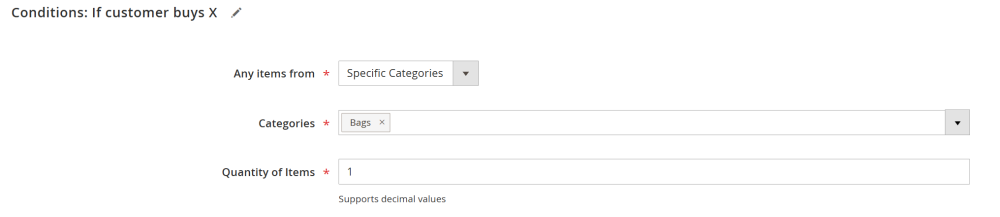
In the Conditions: If Customer Buys X section, define the purchase requirement that triggers the discount.
-
Any items from – define which items the customer must buy to meet the condition:
-
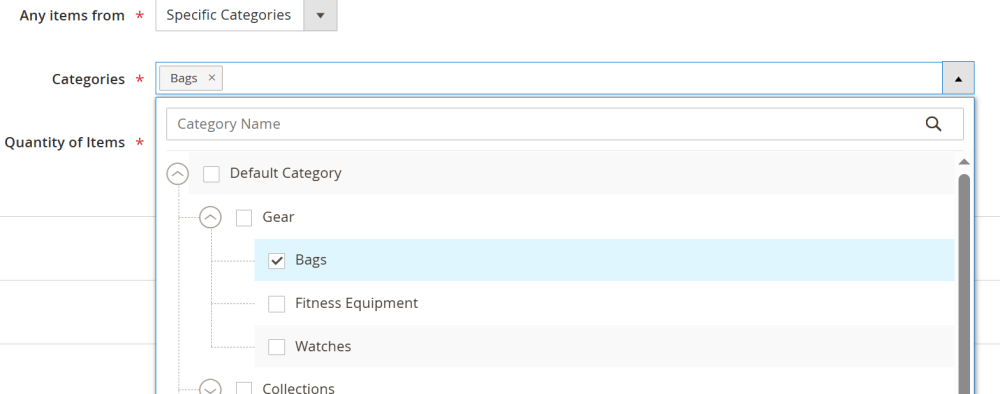
Specific categories – select one or more categories and/or subcategories from which the customer must purchase items.
-
-
-
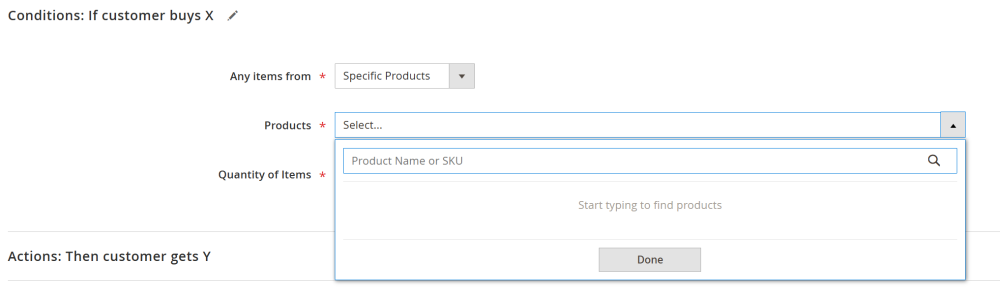
Specific products – search by SKU or product name to select one or more required products that customers have to buy.
-
-
- Specific conditions – create complex catalog conditions based on product attributes (e.g., brand, price, or color).
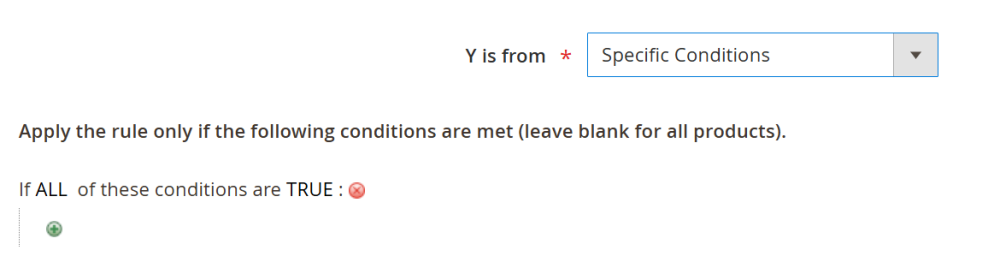
- Quantity of items – enter the number of items that must be purchased to meet the condition (e.g. “5” means the customer must buy 5 items)
Actions: Then customer gets Y
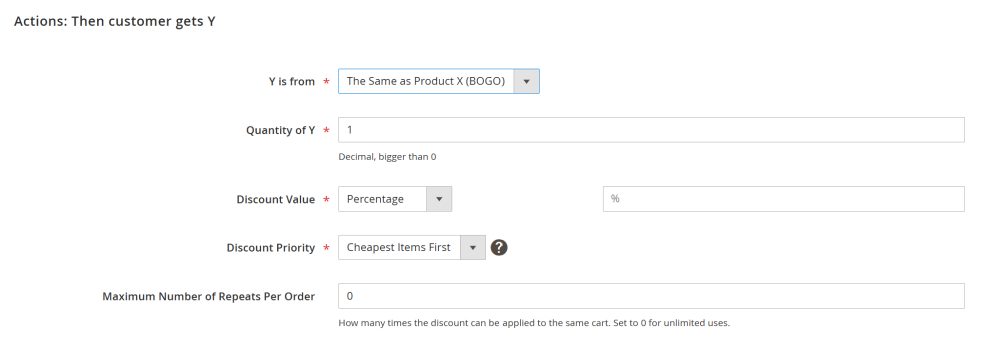
In the Actions: Then customer gets Y section, define which items receive a discount and how much of a discount is applied.
-
Y is from – specify where the discounted items come from:
-
The Same as Product X (BOGO) – the discounted items are the same as in the condition X.
| Note: the items that were used to fulfill the condition X, won’t receive the discount. |
-
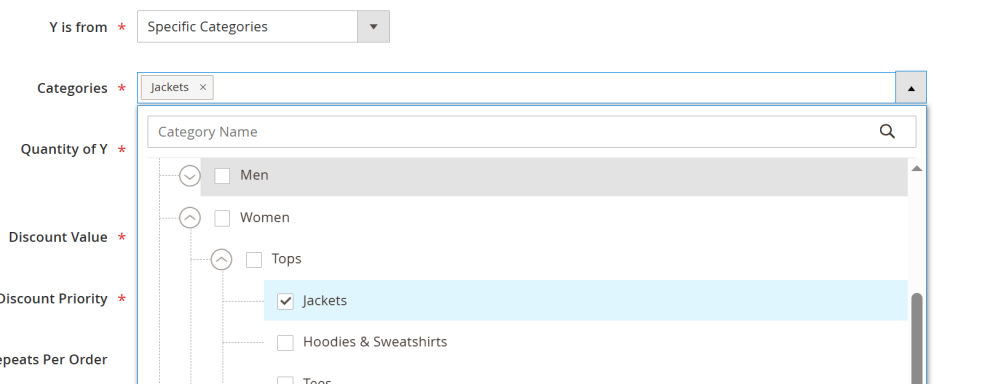
Specific categories – select one or more categories and/or subcategories whose items will receive the discount.
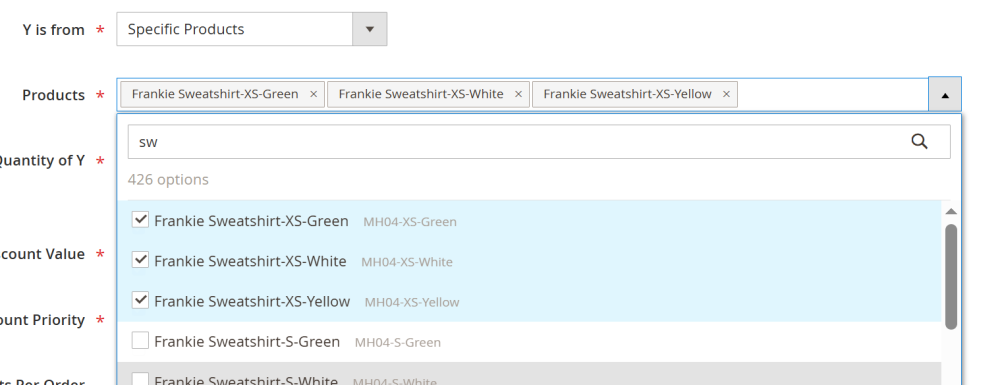
- Specific products – search by SKU or product name to select specific discounted products.
- Specific conditions – apply complex catalog conditions based on product attributes.
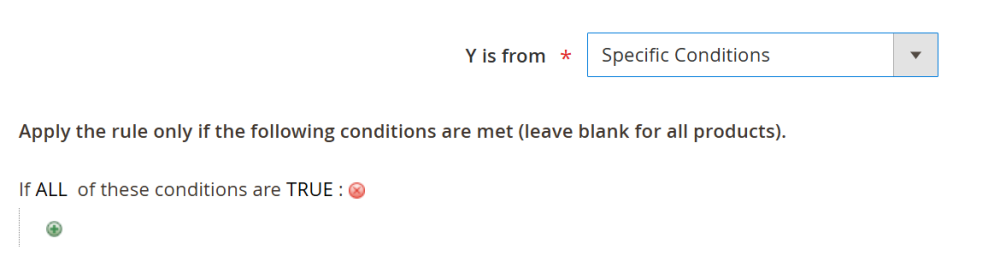
- Quantity of Y – specify how many items receive a discount for each fulfilled X condition package (e.g., if Minimum Quantity (X condition) = 5 and Quantity of Y = 2, for every 5 qualifying items, 2 items receive a discount)
-
Discount Value – from the dropdown menu select the discount type and set its value:
-
Percentage discount (e.g., 10 = 10% off the product price);
-
Fixed amount discount (e.g., 5 = $5.00 off the product price);
-
Free;
-
Fixed price (e.g., 20 = the product will cost $20.00).
-
-
Discount Priority – define which items receive the discount first:
-
Cheapest Items First – the discount is applied to the cheapest Y items. This encourages customers to add more items to reach the discount.
-
Most Expensive First – the discount is applied to the most expensive Y items. This maximizes the customer’s savings per order.
-
Maximum Number of Repeats Per Order – limit how many times the X condition can be fulfilled in a single order.
For example:
-
Minimum Quantity (X condition) = 5
-
Maximum Repeats = 2,
Then even if the cart contains 20 X items, the condition will only be applied twice, and discounts will be granted for two packages of 5 items.
Customers section
In the Customers section, you can define who is eligible to receive the discount.
- Applies to – select the target audience from the dropdown list. Depending on your selection, additional fields will appear.
-
- Specific customer groups – select the specific customer group(s) that will be eligible for the discount.
-
- Specific customers – select the specific customer(s) that will be eligible for the discount. Enter customer email addresses in the Specific Customers field, separated by commas.
Active Dates
In the Active Dates section, you can make the promotion time-limited:
-
Start Date – the date when the promotion becomes active.
-
End Date – the date when the promotion expires.
If no dates are set, the promotion remains active until it is manually disabled.
Example "Buy X, Get Y (BOGO)” Scenarios
Example 1: Classic BOGO
Task: Buy 1 item from the "Clothing" category, get 1 item from the "Accessories" category for free
Settings:
Conditions:
-
Any Items From: Specific Categories → "Clothing"
-
Quantity of Items: 1
Actions:
-
Y is From: Specific Categories → "Accessories"
-
Quantity of Y: 1
-
Discount Value Type: Free
-
Discount Priority: Most Expensive First
-
Maximum Number of Repeats Per Order: 0 (unlimited)
Result:
For each item from the "Clothing" category, the customer gets 1 item from the "Accessories" category for free (the most expensive available)
Example 2: Buy 5, Get 2 with Discount
Task: Buy 5 items from the "Electronics" category, get 2 items from the same category with 20% discount
Settings:
Conditions:
-
Any Items From: Specific Categories → "Electronics"
-
Quantity of Items: 5
Actions:
-
Y is From: The Same as X
-
Quantity of Y: 2
-
Discount Value Type: Percentage
-
Discount Value: 20
-
Discount Priority: Cheapest Items First
-
Maximum Number of Repeats Per Order: 2
Result:
-
If there are 7 items from the "Electronics" category in the cart: 5 go to condition X, 2 receive a 20% discount.
-
If there are 14 items: 10 go to condition X (2 packages of 5), 4 receive a 20% discount (2 packages of 2)
-
If there are 13 items: 10 go to condition X (2 packages of 5), 3 receive a 20% discount (target quantity for 2 packages = 4 items, but only 3 remain, so discount applies to all 3 available items)
Important: Items used to fulfill the condition (the first 5 or 10) do not receive a discount.
Example 3: Buy 3, Get 1 Free with Limit
Task: Buy 3 items from the "Books" category, get 1 item from the "Books" category for free, maximum 2 times per order
Settings:
Conditions:
-
Any Items From: Specific Categories → "Books"
-
Quantity of Items: 3
Actions:
-
Y is From: The Same as Product X (BOGO)
-
Quantity of Y: 1
-
Discount Value Type: Free
-
Discount Priority: Most Expensive First
-
Maximum Number of Repeats Per Order: 2
Result:
-
If there are 3-5 items in the cart: 3 go to condition X, 1 receives a discount (free)
-
If there are 6-8 items: 6 go to condition X (2 packages), 2 receive a discount (free)
-
If there are 9+ items: 6 go to condition X (2 packages), 2 receive a discount (free), as only 2 repeats per order allowed
Example 4: Different Categories with Priority
Task: Buy 2 items from the "Clothing" category, get 1 item from the "Shoes" category with 30% discount, discount on the most expensive item
Settings:
Conditions:
-
Any Items From: Specific Categories → "Clothing"
-
Quantity of Items: 2
Actions:
-
Y is From: Specific Categories → "Shoes"
-
Quantity of Y: 1
-
Discount Value Type: Percentage
-
Discount Value: 30
-
Discount Priority: Most Expensive First
-
Maximum Number of Repeats Per Order: 0
Result:
For every 2 items from the "Clothing" category, the most expensive item from the "Shoes" category receives a 30% discount
Spend X Get Y
Scenario Setting
The Spend X Get Y works similarly to Buy X Get Y, but instead of item quantity, it uses minimum purchase amount. This allows you to create promotions like "Spend $100, get items with discount".
General section
In the General section, configure the following settings
-
Rule Name – enter any convenient name that will be displayed in the promo rules table;
-
Description – optionally describe the rule (e.g. rule conditions) to be displayed in the promo rules table;
-
Enable – enable or disable the promo rule;
-
Website – select the store view where the promo rule applies;
-
Priority – define the order in which rules are applied when the Apply all discounts option is selected in the General settings. Lower numbers have higher priority (e.g. a rule with Priority = 0 is applied before a rule with Priority = 10)
-
Stop further rules processing – toggle to Yes to prevent lower-priority promotions from applying to the cart once this automatic rule is triggered.
-
Method – select how the discount is applied:
-
Automatic discount – the discount is applied automatically once the conditions are met;
-
Coupon code – the customer must enter a coupon code at checkout to receive the discount once the conditions are met.
When selected, an additional Coupon Code field appears where you can enter a custom code or generate a random one.
-
How many times this rule can be applied – limit how many customers can use the promotion (e.g. enter 100 to allow only the first 100 customers to receive the discount. Enter 0 to make the rule available to all customers without limits).
-
Limit to one use per customer – set to Yes if each customer should be able to use the discount only once.
-
Publish coupon – toggle to Yes to display this coupon code automatically on the cart page. This option appears only if a coupon code is required for the rule.
|
Note: On the storefront, the published coupons will be displayed on the cart page directly below the Apply Discount Code field. Customers can view all available offers and apply them to their order with a single click if their cart matches the promotion conditions. |
Conditions: If customer spends X
In the Conditions: If customer spends X section, define the purchase requirement that triggers the discount.
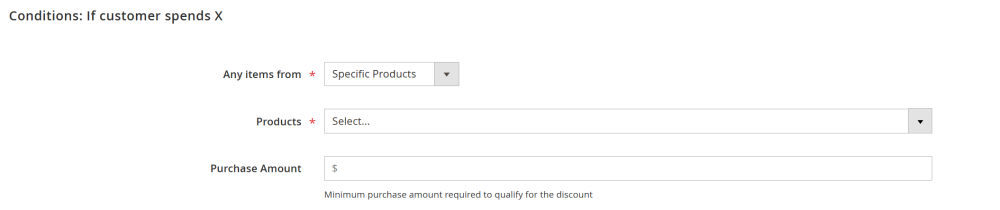
The configuration is with the following options:
-
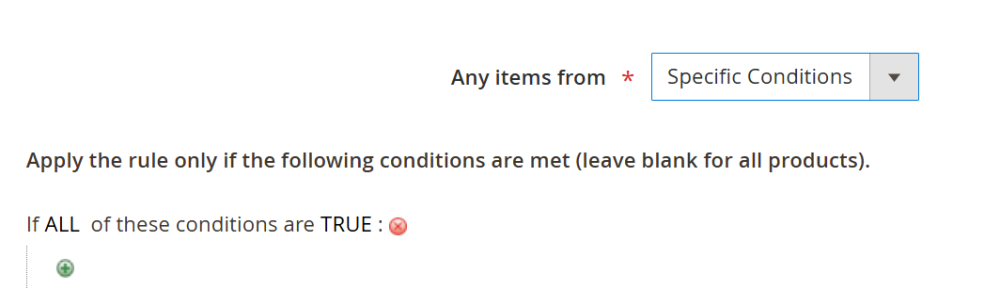
Any items from – define which items the customer must buy to meet the condition:
-
Specific categories – select one or more categories and/or subcategories from which the customer must purchase items.
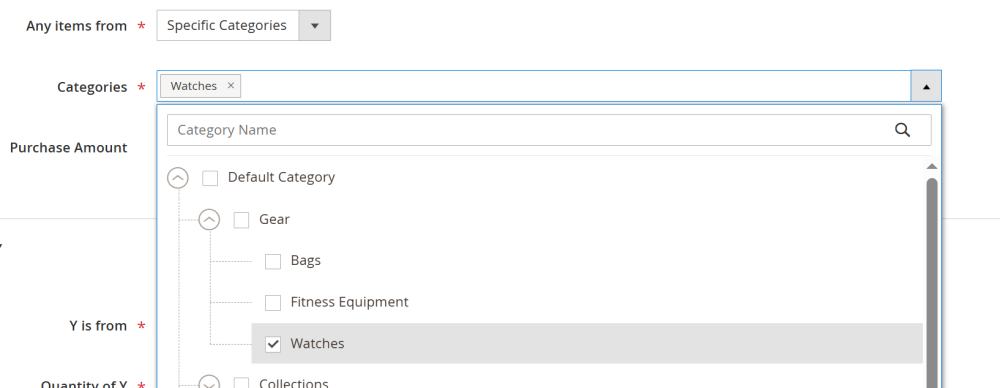
-
-
Specific products – search by SKU or product name to select one or more required products that customers have to buy.
-
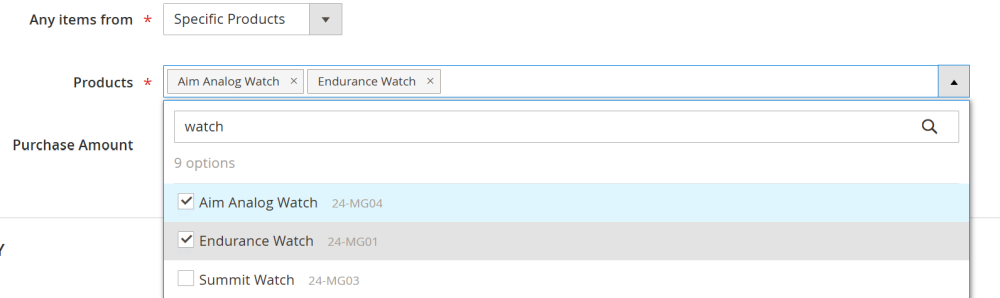
-
- Specific conditions – create complex catalog conditions based on product attributes (e.g., brand, price, or color).
-
Purchase Amount – enter the minimum amount that needs to be spent to meet the condition (e.g., “100” means the customer must spend $100)

Actions: Then customer gets Y
In the Actions: Then customer gets Y section, define which items receive a discount and how much of a discount is applied.
There configuration is with the following options:
-
Y is from – specify where the discounted items come from:
-
The Same as Product X (BOGO) – the discounted items are the same as in the condition X.
| Note: the items that were used to fulfill the condition, won’t receive the discount. |
-
-
Specific categories – select one or more categories and/or subcategories whose items will receive the discount.
-

-
- Specific products – search by SKU or product name to select specific discounted products.

-
- Specific conditions – apply complex catalog conditions based on product attributes.
- Quantity of Y – specify how many items receive a discount for each fulfilled X condition package (e.g., if Minimum Quantity (X condition) = 5 and Quantity of Y = 2, for every 5 qualifying items, 2 items receive a discount)
-
Discount Value – from the dropdown menu select the discount type and set its value:
-
Percentage discount (e.g., 10 = 10% off the product price);
-
Fixed amount discount (e.g., 5 = $5.00 off the product price);
-
Free;
-
Fixed price (e.g., 20 = the product will cost $20.00).
-
-
Discount Priority – define which items receive the discount first:
-
Cheapest Items First – the discount is applied to the cheapest Y items. This encourages customers to add more items to reach the discount.
-
Most Expensive First – the discount is applied to the most expensive Y items. This maximizes the customer’s savings per order.
-
Maximum Number of Repeats Per Order – limit how many times the X condition can be fulfilled in a single order.
|
Calculation Example with Priority Settings:
Cart:
Total: $240 Logic:
|
Customers section
In the Customers section, you can define who is eligible to receive the discount.
- Applies to – select the target audience from the dropdown list. Depending on your selection, additional fields will appear.
-
- Specific customer groups – select the specific customer group(s) that will be eligible for the discount.
-
- Specific customers – select the specific customer(s) that will be eligible for the discount. Enter customer email addresses in the Specific Customers field, separated by commas.
Active Dates
In the Active Dates section, you can make the promotion time-limited:
-
Start Date – the date when the promotion becomes active.
-
End Date – the date when the promotion expires.
If no dates are set, the promotion remains active until it is manually disabled.
Example "Spend X, Get Y” Scenarios
Example 1: Spend $100, Get 1 Item Free
Task: Spend $100 on items from the "Electronics" category, get 1 item from the "Accessories" category for free
Settings:
Conditions:
-
Any Items From: Specific Categories → "Electronics"
-
Purchase Amount: 100
Actions:
-
Y is From: Specific Categories → "Accessories"
-
Quantity of Y: 1
-
Discount Value Type: Free
-
Discount Priority: Most Expensive First
-
Maximum Number of Repeats Per Order: 0
Result:
For every $100 spent on items from the "Electronics" category, the customer gets 1 item from the "Accessories" category for free (the most expensive available)
Example 2: Spend $100, Get 2 Items with 10% Discount
Task: Spend $100 on items from the "Clothing" category, get 2 items from the same category with 10% discount
Settings:
Conditions:
-
Any Items From: Specific Categories → "Clothing"
-
Purchase Amount: 100
Actions:
-
Y is From: The Same as X
-
Quantity of Y: 2
-
Discount Value Type: Percentage
-
Discount Value: 10
-
Discount Priority: Cheapest Items First
-
Maximum Number of Repeats Per Order: 2
Result:
-
If cart items total $110: $100 goes to condition X, 2 cheapest items receive a 10% discount
-
If cart items total $240: $200 goes to condition X (2 packages of $100), 4 cheapest items receive a 10% discount (2 packages of 2)
-
If cart items total $180: floor(180/100) = 1 package, so $100 goes to condition X, 2 cheapest items receive a 10% discount
Important: Items (or their parts) used to reach $100 or $200 do not receive a discount.
Example 3: Spend $50, Get 1 Item Free with Limit
Task: Spend $50 on items from the "Books" category, get 1 item from the "Books" category free, maximum 3 times per order
Settings:
Conditions:
-
Any Items From: Specific Categories → "Books"
-
Purchase Amount: 50
Actions:
-
Y is From: The Same as X
-
Quantity of Y: 1
-
Discount Value Type: Free
-
Discount Priority: Most Expensive First
-
Maximum Number of Repeats Per Order: 3
Result:
-
If cart items total $50-99: $50 goes to condition X, 1 item receives a discount (free)
-
If cart items total $100-149: $100 goes to condition X (2 packages of $50), 2 items receive a discount (free)
-
If cart items total $200+: floor(200/50) = 4 packages, but max_repeats = 3, so $150 goes to condition X (3 packages of $50), 3 items receive a discount (free)
Example 4: Different Categories with Priority
Task: Spend $30 on items from the "Clothing" category, get 2 items from the "Shoes" category with 10% discount, discount on the cheapest items
Settings:
Conditions:
-
Any Items From: Specific Categories → "Clothing"
-
Purchase Amount: 30
Actions:
-
Y is From: Specific Categories → "Shoes"
-
Quantity of Y: 2
-
Discount Value Type: Percentage
-
Discount Value: 10
-
Discount Priority: Cheapest Items First
-
Maximum Number of Repeats Per Order: 0
Result:
For every $30 spent on items from the "Clothing" category, 2 cheapest items from the "Shoes" category receive a 10% discount
Free Shipping
Scenario Setting
The Free Shipping scenario grants free shipping when specific conditions are met. It is a popular promotional tool for encouraging larger purchases and increasing average order value.
|
⚠️ IMPORTANT DIFFERENCE: The Free Shipping scenario calculates the Purchase Amount differently from all other promotion types.
Example:
Best practice: |
General section
In the General section, configure the following settings
-
Rule Name – enter any convenient name that will be displayed in the promo rules table;
-
Description – optionally describe the rule (e.g. rule conditions) to be displayed in the promo rules table;
-
Enable – enable or disable the promo rule;
-
Website – select the store view where the promo rule applies;
-
Priority – define the order in which rules are applied when the Apply all discounts option is selected in the General settings. Lower numbers have higher priority (e.g. a rule with Priority = 0 is applied before a rule with Priority = 10)
-
Stop further rules processing – toggle to Yes to prevent lower-priority promotions from applying to the cart once this automatic rule is triggered.
-
Method – select how the discount is applied:
-
Automatic discount – the discount is applied automatically once the conditions are met;
-
Coupon code – the customer must enter a coupon code at checkout to receive the discount once the conditions are met.
When selected, an additional Coupon Code field appears where you can enter a custom code or generate a random one.
-
How many times this rule can be applied – limit how many customers can use the promotion (e.g. enter 100 to allow only the first 100 customers to receive the discount. Enter 0 to make the rule available to all customers without limits).
-
Limit to one use per customer – set to Yes if each customer should be able to use the discount only once.
-
Publish coupon – toggle to Yes to display this coupon code automatically on the cart page. This option appears only if a coupon code is required for the rule.
|
Note: On the storefront, the published coupons will be displayed on the cart page directly below the Apply Discount Code field. Customers can view all available offers and apply them to their order with a single click if their cart matches the promotion conditions. |
Conditions
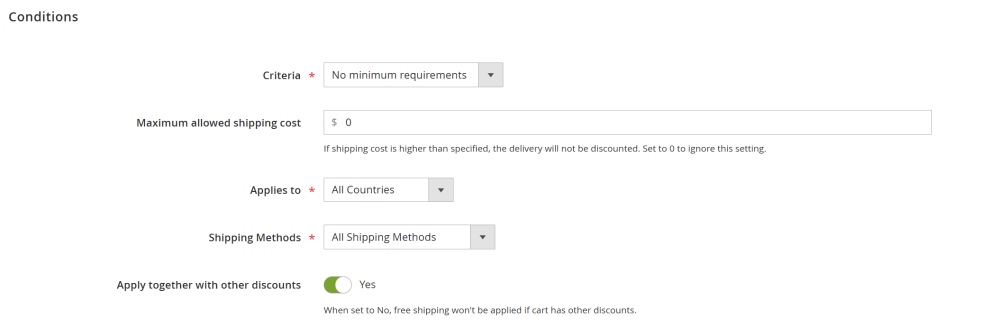
At the Conditions section you will see the conditions you have to configure that will trigger free shipping.
-
Criteria – define conditions that must be met to get free shipping:
-
No minimum requirements – no additional conditions; free shipping applies immediately.
-
Minimum purchase amount – the customer must reach a minimum cart subtotal (e.g. 100 = $100).

-
- Minimum quantity of items – the customer must have at least a specified number of items in the cart (e.g. 5 = 5 items in the cart). The option supports decimal values.

- Maximum allowed shipping cost – sets the highest shipping rate that can qualify for free shipping. If the shipping cost exceeds this value, that shipping method will not be discounted. Set to 0 to disable this limit (e.g., if set to $50, free shipping will only apply to rates costing $50 or less. Rates above $50 will need to be paid).
-
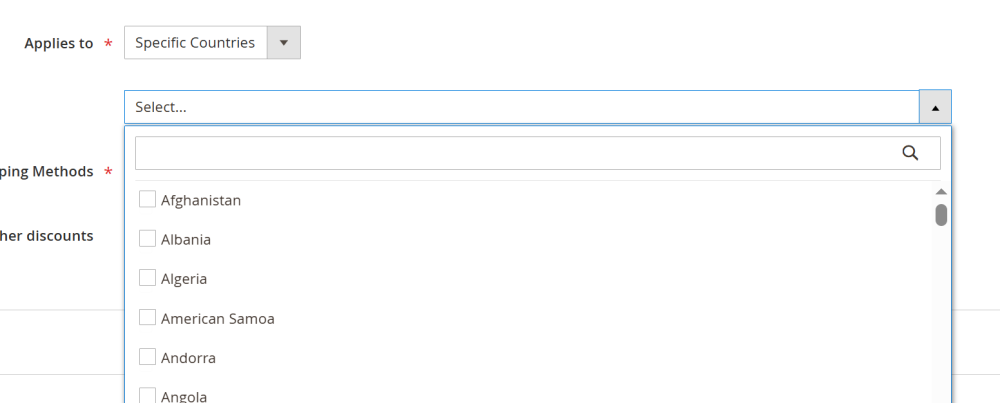
Apply to – define which destination countries are eligible for free shipping:
-
All Countries – free shipping applies to all countries.
-
Specific Countries – free shipping is limited to selected countries. When selected, choose eligible countries from the dropdown list.
-
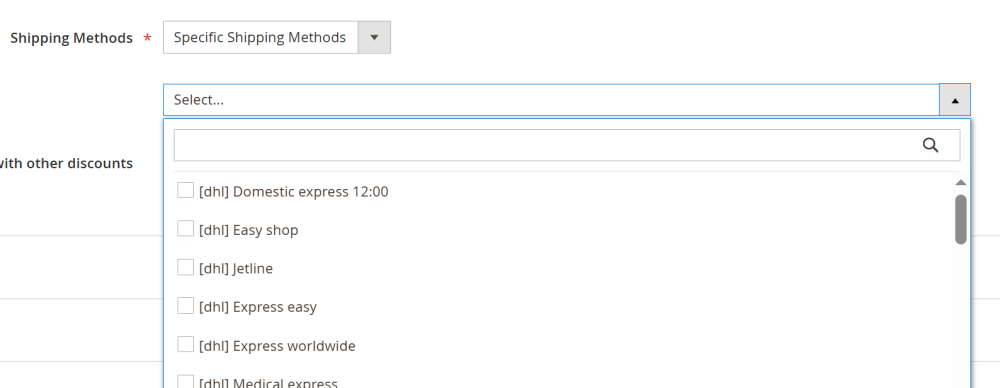
Shipping Methods – define which shipping methods qualify for free shipping:
-
All Shipping Methods – free shipping applies to all available methods.
-
Specific Shipping Methods – free shipping applies only to selected methods. Choose eligible methods from the dropdown list.
-
Apply together with other discounts – control whether free shipping can be combined with other promotions:
-
If set to Yes – free shipping applies even if other discounts are present in the cart.
-
If set to No – free shipping does not apply if any other monetary discounts are used.
Examples:
-
If set to No, free shipping is automatically removed when another discount appears in the cart.
-
If set to No and a free shipping coupon is entered, but an automatic discount rule is triggered afterward, the free shipping coupon is automatically removed.
Customers section
In the Customers section, you can define who is eligible to receive the discount.
- Applies to – select the target audience from the dropdown list. Depending on your selection, additional fields will appear.
-
- Specific customer groups – select the specific customer group(s) that will be eligible for the discount.
-
- Specific customers – select the specific customer(s) that will be eligible for the discount. Enter customer email addresses in the Specific Customers field, separated by commas.
Active Dates
In the Active Dates section, you can make the promotion time-limited:
-
Start Date – the date when the promotion becomes active.
-
End Date – the date when the promotion expires.
If no dates are set, the promotion remains active until it is manually disabled.
Example "Free Shipping” Scenarios
Example 1: Free Shipping on Purchase of $100 or More
Task: Provide free shipping on purchases of $100 or more
Settings:
-
Criteria Type: Minimum Purchase Amount
-
Minimum Purchase Amount: 100
-
Maximum allowed shipping cost: 0 (no limit)
-
Apply to: All Countries
-
Shipping Methods: All shipping methods
-
Apply together with other discounts: Yes
Result:
If cart subtotal (after applying other discounts) $100 or more, all shipping methods will be free
Important: If there are items totaling $110 in the cart, but a $20 discount is applied, then $90 is checked, and free shipping will not apply.
Example 2: Free Shipping Only for Specific Countries
Task: Free shipping on purchase of $50 or more only for USA and Canada
Settings:
-
Criteria Type: Minimum Purchase Amount
-
Minimum Purchase Amount: 50
-
Apply to: Specific Countries → select "United States" and "Canada"
-
Shipping Methods: All shipping methods
-
Apply together with other discounts: Yes
Result:
If shipping address is in USA or Canada, and cart subtotal (after discounts) $50 or more, shipping will be free
Example 3: Free Shipping Only for Specific Methods
Task: Free shipping on purchase of $75 or more only for standard shipping (Standard Shipping)
Settings:
-
Criteria Type: Minimum Purchase Amount
-
Minimum Purchase Amount: 75.00
-
Apply to: All Countries
-
Shipping Methods: Specific shipping methods → select "Standard Shipping"
-
Apply together with other discounts: Yes
Result:
If cart subtotal (after discounts) $75 or more, only the "Standard Shipping" method will be free, other methods will remain paid
Example 4: Free Shipping Without Other Discounts
Task: Free shipping on purchase of $100 or more, but only if there are no other monetary discounts
Settings:
-
Criteria Type: Minimum Purchase Amount
-
Minimum Purchase Amount: 100.00
-
Apply to: All Countries
-
Shipping Methods: All shipping methods
-
Apply together with other discounts: No
Result:
-
If there are items totaling $120 in the cart and no other discounts → free shipping applies
-
If there are items totaling $120 in the cart, but a $10 discount is applied → free shipping does not apply
-
If a coupon for free shipping was entered, but then an automatic rule with discount was triggered → coupon is automatically removed
Example 5: Free Shipping with Rate Cost Limit
Task: Free shipping on purchase of $50 or more, but only for rates costing $20 or less
Settings:
-
Criteria Type: Minimum Purchase Amount
-
Minimum Purchase Amount: 50
-
Maximum allowed shipping cost: 20
-
Apply to: All Countries
-
Shipping Methods: All shipping methods
-
Apply together with other discounts: Yes
Result:
If cart subtotal (after discounts) $50 or more:
-
Rates costing $20 or less → free shipping
-
Rates costing more that $20 → remain paid
Managing Promo Rules
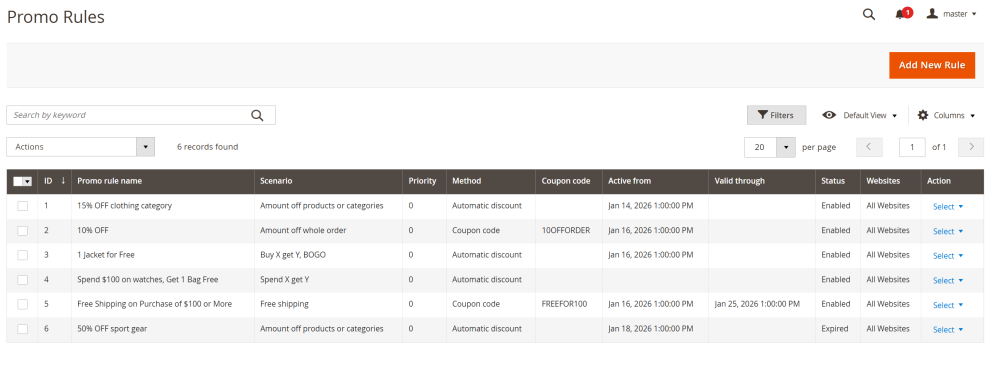
To view and manage existing promotion rules, go to Marketing > Special Promotions by Aheadworks > Promo Rules
The Promo Rules table displays all created promotional rules and their key settings at a glance:
-
ID – unique system-generated identifier for the promo rule;
-
Promo rule name – The name of the promotion rule, defined by the admin;
| Best Practice: Use a clear, descriptive name that explains the purpose of the rule, for example: “15% OFF Clothing Category”. |
-
Scenario – Shows the promotion type used by the rule:
-
Amount off products or categories
-
Amount off whole order
-
Buy X Get Y (BOGO)
-
Spend X Get Y
-
Free shipping
-
Priority – Defines the order in which rules are applied. Rules with a lower priority number are applied before rules with a higher number (e.g. a rule with Priority 0 is applied before Priority 10)
-
Method – Indicates how the promotion is triggered:
-
Automatic discount – applied automatically when conditions are met;
-
Coupon code – applied only when conditions are met and the customer enters a valid coupon code at checkout;
-
Coupon Code – Displays the coupon code required to activate the rule. This field is empty for rules using the Automatic Discount method;
-
Active from – The date and time when the promo rule becomes active;
-
Valid Through – The date and time when the promo rule expires. If empty, the rule has no expiration date;
-
Status – Shows whether the rule is currently active:
-
Enabled – the rule is active and can be applied;
-
Disabled – the rule is switched off;
-
Expired – the rule is still enabled but no longer valid due to date or usage limits;
-
Website – Indicates which website(s)/store views the promo rule applies to;
-
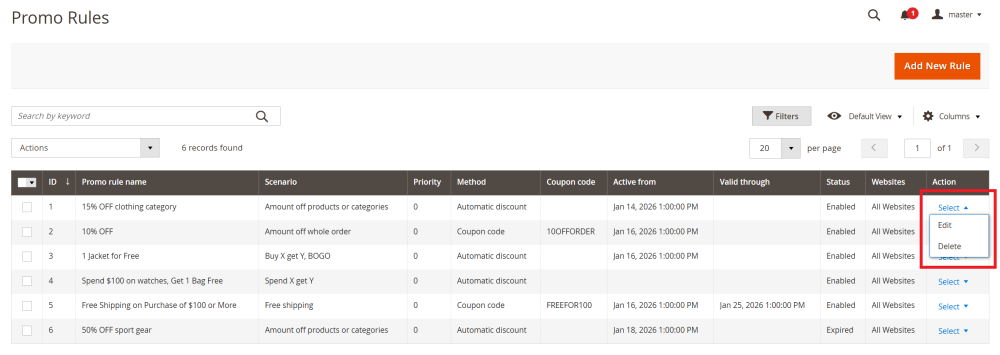
Action – Provides actions you can perform on the rule:
-
Edit;
-
Delete.
To edit the existing rule, In the Action column, click Select next to the rule. and choose Edit option. You will be redirected to the rule configuration page, where you can update the rule settings.
Frequently Asked Questions
General Questions
Q: How does rule priority work?
A: Rules are applied in priority order (Priority). The lower the number, the higher the priority. For example, a rule with Priority = 0 is applied before a rule with Priority = 10.
Q: Can I use multiple promotional rules at the same time?
A: Yes. This depends on the Discount calculation setting in the module configuration:
-
Apply all discounts - all matching rules are applied (discounts are combined)
-
Apply the best offer - only the most beneficial rule is applied (with the highest discount)
Q: Do promotional rules work with products that have a Special Price set for them?
A: This depends on the "Apply discounts to products with special price" setting in the module configuration:
-
Yes - promotional rules apply to products with special price
-
No - promotional rules do not apply to products with special price
Q: Can I limit a promotion to specific customers or customer groups?
A: Yes. In the Customers section, you can choose:
-
All Customers - the promotion applies to everyone.
-
Specific Customer Groups - the promotion applies only to selected groups.
-
Specific Customers - the promotion applies only to selected customers (by email).
Q: How does the "Maximum Number of Repeats Per Order" limit work?
A: This limit determines how many times condition X can be fulfilled in a single order.
For example:
Minimum Quantity = 5, Maximum Repeats = 2
If there are 20 qualifying items in the cart, the condition will be fulfilled only 2 times (10 items), not 4 times
Questions About Buy X Get Y
Q: What happens if items from condition X and action Y overlap?
A: Items used to fulfill condition X do not receive a discount from action Y.
For example:
Condition: 5 items from the "Clothing" category
Action: 2 items from the "Clothing" category with discount
If there are 7 “Clothing” items in the cart, the first 5 fulfill Condition X, and the remaining 2 receive the discount.
Q: How does Discount Priority work?
A: Priority determines which Y items will receive a discount:
-
Cheapest Items First - the cheapest items are discounted.
-
Most Expensive First - the most expensive items are discounted.
When items overlap, this priority also determines which items are used to fulfill Condition X.
Q: Can I use fractional quantities (e.g., 0.5 or 0.1)?
A: Yes, the system supports fractional quantities.
For example:
Minimum Quantity = 2.5 means you need to buy 2.5 units of the item
This is useful for items sold by weight or length
Questions About Spend X Get Y
Q: How does the system determine how many items are needed to reach the required amount?
A: The system automatically converts amount to item quantity:
-
Items are sorted by discount priority
-
The system calculates how many item units are needed to reach the amount.
-
Items are “consumed” in the order defined by the priority.
Q: Why are cheaper items used to reach the amount when “Most Expensive First” is selected?
A: This is the priority logic:
With Most Expensive First, the goal is to discount the most expensive items.
To achieve this:
-
Cheaper items are used to reach the required amount (Condition X).
-
More expensive items remain available for the discount (Action Y).
With Cheapest First, the logic is reversed.
-
Expensive items are used to reach the required amount (Condition X).
-
The cheapest items remain available for the discount (Action Y).
Q: What happens if the cart total does not reach the required amount?
A: If the amount is not reached, the condition is not fulfilled and no discount is applied.
For example:
Purchase Amount = $100
Cart amount = $80
Result: discount is not applied
Questions About Amount Off Products or Categories
Q: Can I apply a discount only to specific products?
A: Yes, in the Applies To setting you can select:
-
Specific Products
-
Specific Categories
-
Specific Conditions
Q: How does the "Every Nth Item" criterion work?
A: The discount applies to every Nth item.
For example:
Every Nth Item = 3 means the discount applies to the 3rd, 6th, 9th item, etc.
If "Starting From = 3" is specified, the discount applies starting after the 3rd item: 6th, 9th, 12th, etc. (the 3rd item itself does not receive a discount, as "Starting From" means "starting after").
Q: Can I combine multiple criteria in one rule?
A: No, currently one criterion type can be selected per rule. However, you can create multiple rules with different criteria.
Q: How does the "Purchase Amount" field work for different scenarios?
A: The "Purchase Amount" field works differently depending on the scenario:
-
Amount Off Products, Amount Off Order, Buy X Get Y, Spend X Get Y: The original cart subtotal is checked before applying discounts (subtotal)
-
Free Shipping: The cart subtotal is checked after applying other monetary discounts (subtotal_with_discount)
This means that for the Free Shipping scenario, if there are items totaling $110 in the cart, but a $20 discount is applied, then $90 is used for the check.
Questions About Amount Off Order
Q: What is the difference between Amount Off Products or Categories and Amount Off Order?
A: The main differences are:
-
Amount Off Products: Applies discount to specific products/categories that you select. Supports Percentage, Fixed Amount, Fixed Price, and Free discount types.
-
Amount Off Order: Applies discount to the entire order subtotal, regardless of which products are in the cart. Only supports Percentage and Fixed Amount discount types.
Q: Can I apply an Amount Off Order discount to specific products only?
A: No. Amount Off Order always applies to the entire order subtotal. Use Amount Off Products or Categories if you need product-level control.
Q: Why aren’t Fixed Price or Free discounts available for Amount Off Order?
A: Fixed Price and Free discount types are designed for individual products, not entire orders. It doesn't make sense to set a "fixed price" for an entire order or make an entire order "free" based on order-level criteria. Use Percentage or Fixed Amount instead.
Q: How is the Amount Off Order discount calculated?
A: The discount is calculated from the order subtotal (before shipping, taxes, and other discounts):
-
Percentage: discount = subtotal × (percentage / 100)
-
Fixed Amount: discount = fixed_amount (but not more than subtotal)
The discount cannot exceed the order subtotal.
Questions About Free Shipping
Q: Why is free shipping not applied even though the cart total seems sufficient?
A: Possible reasons:
-
The rule has "Apply together with other discounts = No", and there are other monetary discounts in the cart
-
Cart subtotal (after applying other discounts) is less than the minimum amount for free shipping
-
Shipping address is not in the list of allowed countries
-
Selected shipping method is not in the list of allowed methods
-
Shipping rate cost exceeds the "Maximum allowed shipping cost" value
Q: What does "Apply together with other discounts" mean?
A: This parameter determines whether free shipping will apply together with monetary discounts:
-
Yes - free shipping applies even if there are other monetary discounts in the cart
-
No - free shipping does not apply if there are other monetary discounts in the cart. If a free shipping coupon is used and another automatic discount is triggered, the coupon is automatically removed.
Q: How does "Maximum allowed shipping cost" work?
A: This option limits free shipping to rates below a specified cost:
If set to $20, free shipping will only apply to rates costing $20 or less
Rates with price more than $20 will remain paid
If set to 0, there is no limit, and free shipping applies to all rates
Common Problems and Solutions
1) Problem: Discount is not applied
Possible causes:
-
Rule is not active (Status = Disabled or Expired)
-
Rule expired by date (valid through < current date)
-
Rule reached usage limit (uses_per_rule)
-
Rule dates do not match the current date
-
Products do not match "Applies To" conditions
-
Criteria are not met (e.g., insufficient amount or quantity)
-
Rule does not apply to the current customer group
-
Rule does not apply to the current store (Website)
Solution:
Verify that:
-
Rule status is Enabled
-
“Start Date” and “End Date” include the current date
-
Usage limits have not been reached
-
Cart items match rule conditions
-
Customer group and website are correct
Checking Expired status:
In the rules grid, Expired status is automatically displayed for rules that:
-
Have an end date less than the current date
-
Have reached the usage limit (uses_per_rule)
-
Rules with Expired status are not applied to the cart, even if they are Enabled
2) Problem: Discount is applied to wrong products
Possible causes:
-
"Applies To" is configured incorrectly
-
Discount priority is selected incorrectly
-
With overlap, items used for condition X should not receive a discount
Solution:
Review the Applies To and Discount Priority settings and ensure you understand the overlap logic.
3) Problem: Discount is applied multiple times
Possible causes:
-
Multiple rules are created that apply to the same products
-
"Discount calculation" setting is set to "Apply all discounts"
Solution:
Review the number of active rules and the "Discount calculation" setting in the module configuration.
4) Problem: Maximum Repeats does not work as expected
Possible causes:
-
Maximum Repeats is set to 0 (unlimited)
-
Condition is fulfilled fewer times than set in Maximum Repeats
Solution:
Make sure Maximum Repeats is set to the desired value (greater than 0 for a limit).
Working with Different Product Types
Bundle Products
Features:
-
Bundle products with isChildrenCalculated = true are processed as the sum of all child items
-
Discount is applied to the bundle product as a whole
-
Bundle product quantity is counted as the number of sets
Example:
Bundle product consists of 2 items at $20 and 1 item at $30
Bundle price = $70
With 10% discount: discount = $7
Configurable Products
Features:
-
Configurable products are processed as regular products
-
Price of the selected variant (simple product) is used
-
Quantity is counted by the parent item
Example:
Configurable product with selected variant at $50, quantity = 2
With 10% discount: discount = $10 (10% of $100)
Grouped Products
Features:
-
Grouped products are processed as the sum of all child items
-
Parent item has rowTotal = 0, sum of children is used
-
Quantity is counted by the parent item
Example:
Grouped product consists of 2 items at $25 and 1 item at $30
Total amount = $80
With 10% discount: discount = $8
Fractional Quantities
The system fully supports fractional item quantities (e.g., 0.5, 0.1, 2.5, etc.). This is useful for products sold by weight, length, or other fractional units.
Example 1: Buy X Get Y with Fractional Quantities
Minimum Quantity = 2.5
Quantity = 1.0
Cart: 10 items at 0.5 units each = 5.0 units
Result: 2 packages (floor(5.0 / 2.5) = 2), discount on 2 items
Example 2: Spend X Get Y with Fractional Quantities
Purchase Amount = $50
Quantity = 1.0
Cart: 20 items at 0.1 units each, each item price = $5
Result: 2 units to reach $50, 1 package, discount on 1 item
Best Practices
1. Planning Promotional Campaigns
-
Define campaign goal: increase sales, clear inventory, attract new customers
-
Set realistic conditions: don't make conditions too complex or unattainable
-
Consider profitability: make sure the campaign won't lead to losses
2. Rule Configuration
-
Use priorities: set correct priorities for rules so they apply in the desired order
-
Limit repeats: use Maximum Repeats to control costs
-
Test rules: create a test order before activating a rule
3. Monitoring Effectiveness
-
Track statistics: use aw_special_promotions_discount_amount columns to analyze effectiveness
-
Analyze conversion: check if the campaign increases the number of orders
-
Adjust rules: make changes based on data
4. Avoid Conflicts
-
Check overlaps: make sure rules don't conflict with each other
-
Use different categories: for Buy X Get Y and Spend X Get Y, it's better to use different categories for X and Y
-
Test combinations: check how rules work together
5. Customer Communication
-
Inform customers: place campaign information on the website
-
Use banners: create visual elements to attract attention
-
Time limits: create urgency through date restrictions
Already used our product?
We would appreciate your feedback. Please, leave a review.