



User Manual - Order Comments
- Installing Magento 2 Order Comments extension
- Set up cron
- Uninstalling Magento 2 Order Comments extension
- Extension Compatibility
- Introducing Magento 2 Order Comments extension
- Using Magento 2 Order Comments extension
Installing Magento 2 Order Comments extension
Command Line Installation
- Backup your web directory and store database
- Download the Order Comments installation package
- Upload contents of the Order Comments installation package to your store root directory
- In SSH console of your server navigate to your store root folder:
cd path_to_the_store_root_folder |
run the following command: :
php bin/magento module:enable Aheadworks_OrderCommentTemplates |
then:
php bin/magento setup:upgrade |
after:
php bin/magento setup:static-content:deploy -f |
5. Flush store cache; log out from the backend and log in again
|
Make sure the installation is done from the FTP administrator account. Otherwise, set 775 permissions to the store root directory after the extension is deployed. |
Composer Installation
If you are installing an extension from Aheadworks for the first time, you need to add our composer repository to your Magento store:
1. Login to your ssh console and navigate to your store folder:
cd path_to_the_store_root_folder |
Run the following command:
composer config repositories.aheadworks composer https://dist.aheadworks.com/ |
After the command was executed successfully, you can use the composer to install the extension.
To install the extension:
2. Login to your ssh console and navigate to your store folder:
cd path_to_the_store_root_folder |
3. Run the following command to install the latest version of the extension:
composer require aheadworks/module-order-comment-templates |
if you need to install a specific version, run this command:
composer require aheadworks/module-order-comment-templates:<version> |
|
Specify the version of the extension in <version> |
When prompted, enter Public Key (Username) and Private Key (Password):

Both Public Key (Username) and Private Key (Password) can be found in My Projects and Licenses in your personal account on our site:

To update or upgrade an extension:
Download the updated extension file. Take note of the module-name and version. Export the contents to your Magento root.
If a composer package exists for the extension, run one of the following.
Update per module name:
composer update aheadworks/module-order-comment-templates |
Updater per version:
composer require aheadworks/module-order-comment-templates:<version> |
Run the following commands to upgrade, deploy, and clean the cache.
php bin/magento setup:upgrade --keep-generated |
Set up cron
If you have already configured cron jobs for your Magento installation then you can skip this step. Read the following instructions on setting cron job for your Magento store: Magento user guide.
Generally, it would be enough to run in SSH console of your server:
crontab -e |
And insert the following line:
*/3 * * * * php -c <ini-file-path> <your Magento install dir>/bin/magento cron:run |
Remember to confirm the Save request when exiting the installation.
Uninstalling Magento 2 Order Comments extension
Since Magento introduced declarative Database you need to be very carefull when uninstalling or disabling the module.
|
NOTE: Please be very careful when uninstalling/disabling this module. This module uses a declarative DB scheme. Once the module is uninstalled the DB tables will be lost. |
Manual Removal
1. Disable the module by executing the following commands:
php bin/magento module:disable Aheadworks_OrderCommentTemplates |
2. Remove the extension files from the following folder:
app/code/Aheadworks/OrderCommentTemplates |
Automatic Removal (via Composer)
1. Disable the module by executing the following commands:
php bin/magento module:uninstall Aheadworks_OrderCommentTemplates |
Extension Compatibility
|
Module Version |
Magento Version |
|
As of version 1.0.0 |
2.4.6 - 2.4.8 |
|
As of version 1.0.2 |
2.4.7- 2.4.9 |
The PHP version depends on your current Magento version. Please, refer to your Magento version release notes.
Introducing Magento 2 Order Comments
Extension Overview
The Magento 2 Order Comments extension streamlines customer notification by enabling quick, consistent, and trackable sales comments. Instead of typing messages manually for every order, invoice, shipment, or credit memo, admins can create reusable templates that are automatically filtered by store view and sales entity type. This ensures that only relevant comments appear, reducing human mistakes and speeding up workflows.
Key Features
- Unlimited comment templates creation
- Store-view and sales entities template filtering to show only relevant comment templates
- Quick insertion of pre-build comments directly from the Sales Order page
- Manual editing of comments for personalization
Using Magento 2 Order Comments extension
Extension Configuration
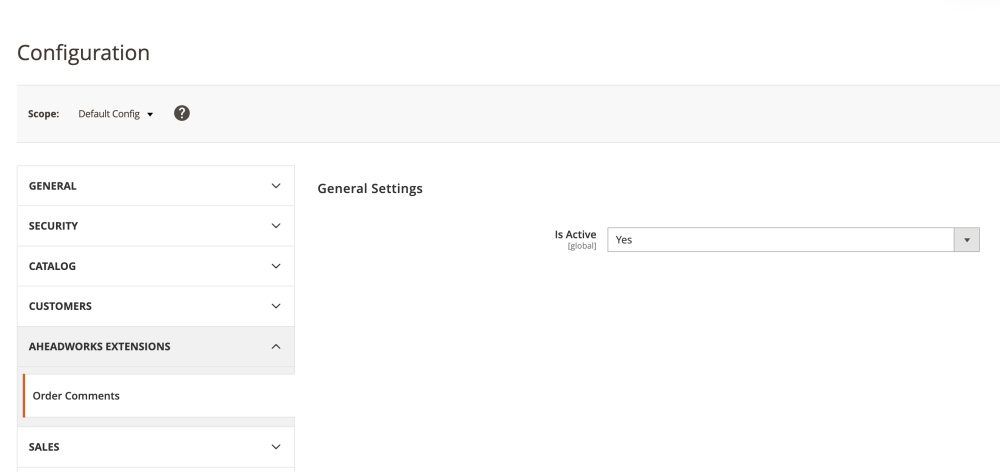
To enable the extension, go to Stores > Configuration > AHEADWORKS EXTENSIONS > Order Comments.
In the General Settings section set the Is Active option to Yes
Creating Order Comment Templates
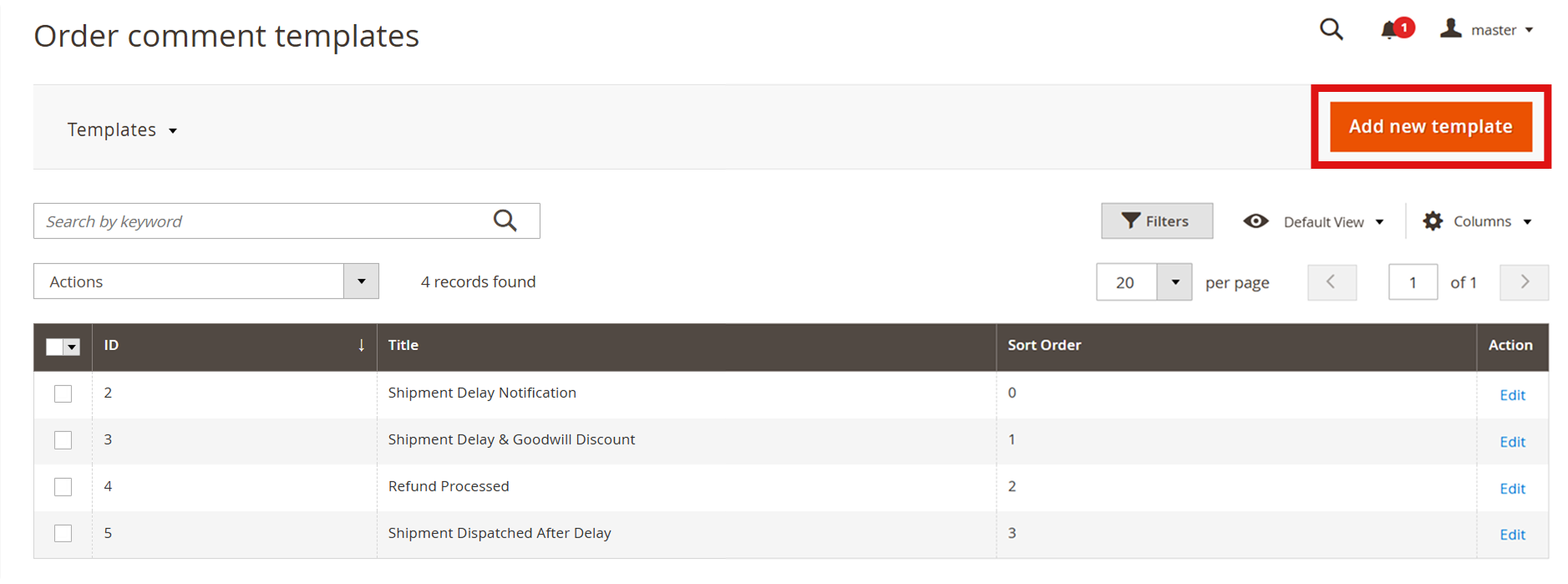
To create the Comment Template go to Sales > Order Comments by Aheadworks > Templates, and click the Create New Template button
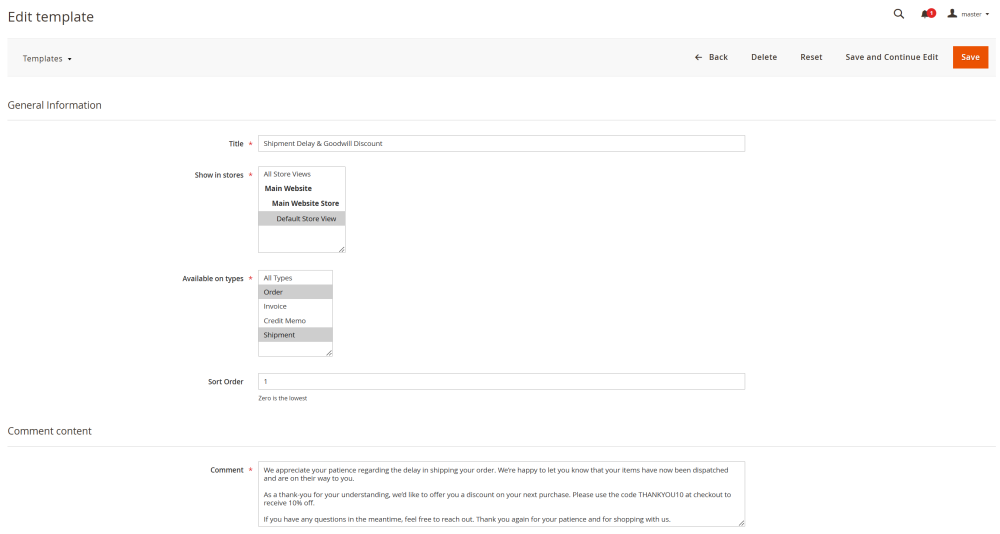
On the New Template page set the following options:
- Template Title – the internal name of the template. It will be displayed in the templates table and in the dropdown menu when selecting a comment template on the order page.
- Shown in Stores – select the store view(s) where the template should be available. This ensures that only relevant templates appear for a specific store view.
- Available on Types – select the sales entity types for which this template should be available (Order, Invoice, Shipment, Credit Memo). This prevents irrelevant templates from appearing in unrelated contexts.
- Sort Order – define the position of the template in the dropdown list when selecting a comment template.
- Comment – enter the comment text that will be inserted when the template is applied on the sales order (shipment, invoice, etc) page.
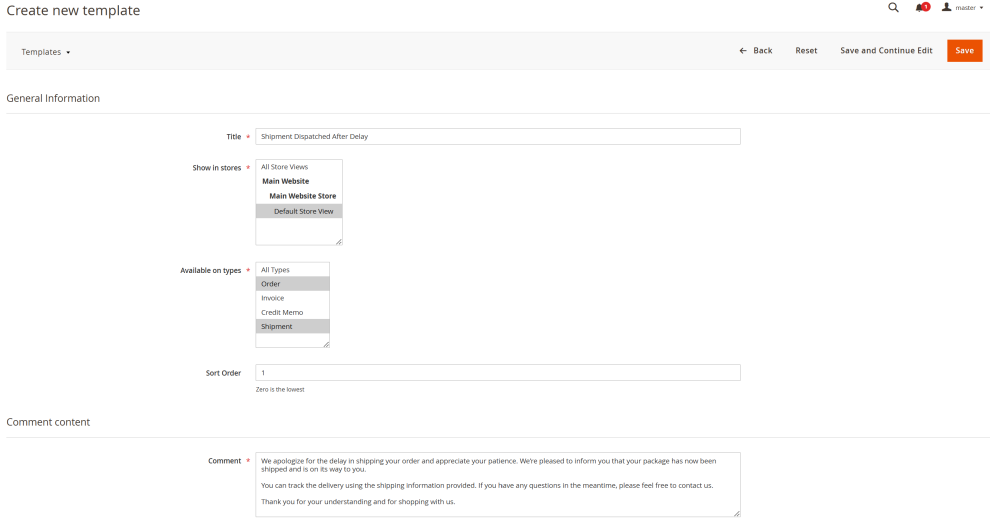
Once completed, click the Save button
Using Order Comment Templates
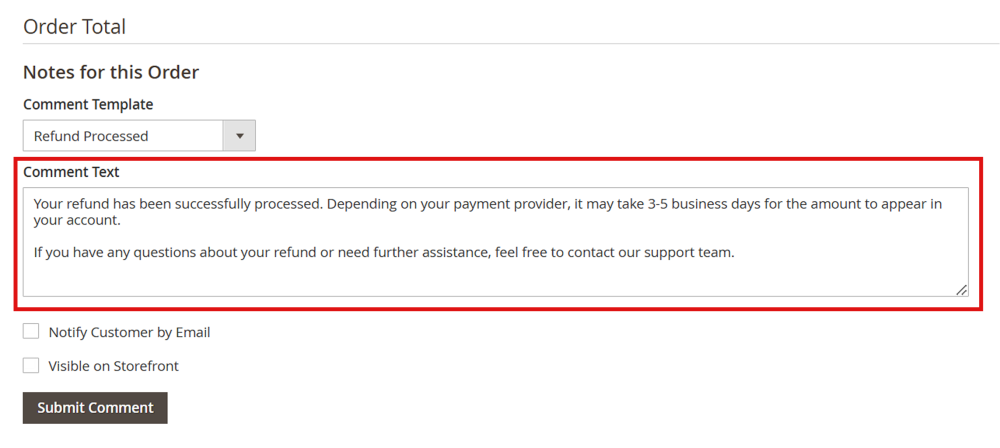
To use the order comment template go to Sales > Orders and open the required order (or invoice, shipment, etc.).
On the opened page, scroll down to the Order Total section.
In the Comment Template dropdown, select the desired template.
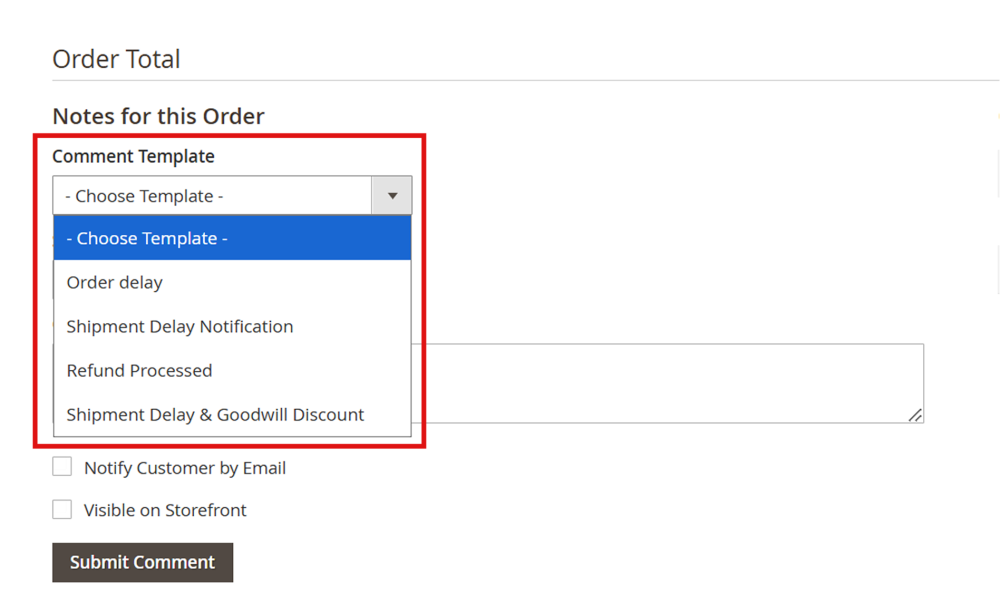
The selected template will automatically insert the pre-build comment in the Comment Text field. You may also manually edit this text if any personalization is required.
Editing Order Comment Templates
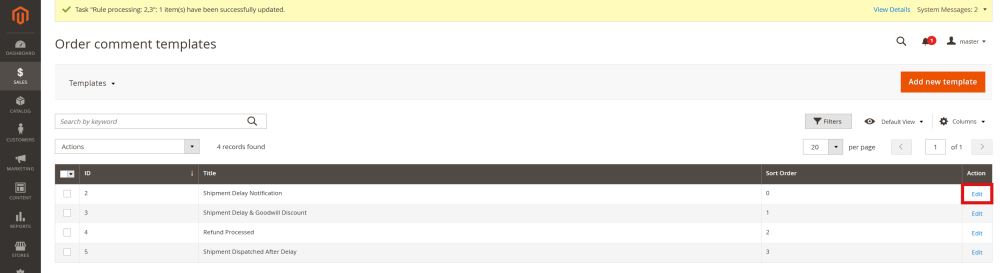
To edit an existing order comment template, go to Sales > Order Comments by Aheadworks > Templates. In the Order comment templates table, click Edit text-link next to the required template.
On the Edit template page, update the necessary fields and click Save.
Already used our product?
We would appreciate your feedback. Please, leave a review.